
Shoonya Back Office allows you to check trading account details, financial records, holdings, contract notes, etc. Operated by Finvasia, Shoonya offers this facility separately for investors and traders to access account-related information.
Through a single login, the Shoonya Back Office provides access to several reports like download a contract note, check your demat holdings, review your financial ledger or view your trading activity.
We’ll today explain the complete process to log in to the Shoonya Back Office. You’ll also explore its main features and the process to use it here.
What is Shoonya Back Office?
It is a client portal provided by Finvasia Securities Private Limited. Without direct dependence on the trading app, it helps registered clients access important financial and account-related information.

Shoonya offers these platforms:
- Shoonya Trading Platform is ideal for buying and selling securities, monitoring markets, and managing trading activities.
- Shoonya Back Office is perfect for checking contract notes, financial ledgers, holdings, balances, etc.
- For queries, complaints, and account-related requests, PRISM allows users to analyze investments and raise support tickets.
Although these platforms serve different purposes, clients can use them to manage their trading and investment accounts.
How to Log in to Shoonya Back Office?
You can access Shoonya Back Office via its official login page. Before starting the process, you should keep your client login credentials handy. Follow these steps:
- On your mobile phone or computer, you should first open your preferred web browser.
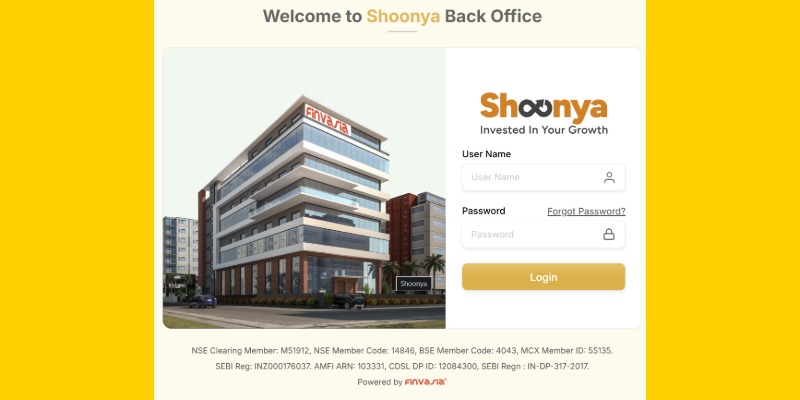
- You must then visit the official Shoonya Back Office login page.
- The login screen will have User Name and Password fields.
- You must then enter your registered login credentials.
- To proceed, you should click the login button.
- After successful authentication, you can use your Back Office dashboard.
Note: Before entering your login details, you should always check the website address to ensure you are using the right website.
How to Use Shoonya Back Office? Step-by-Step Guide
After successfully logging in, you will see different sections on your screen. Check the main features below:
1. Check Your Client Profile
Personal and account-related information connected to your trading account is available in the Client Profile section. Top details available here are:
- Client code and registered name
- Residential address
- Registered email address and mobile number
- Account opening and closing dates
- Nominee details
- PAN information
- DP ID and demat account number
- Father’s and mother’s names
- Primary bank account details
The information related to your account can be verified here. If you see any incorrect information here, then you should contact Shoonya support through the appropriate service channel.
2. Change Your Back Office Password
A password management option is also available here.
To change your password, you should follow these steps:
- You must first open the Change Password section on your dashboard.
- Enter the password details.
- You should then set your new password as per the portal’s displayed requirements.
- Lastly, save the change.
For its shown interface, a password of 4 to 13 characters is recommended. Before setting a new password, you should check the current Shoonya portal’s password requirements.
3. Check Your Financial Summary
The dashboard also offers a financial summary where your account balance across different trading segments can be accessed. This information is usually available here:
- Ledger balance
- Margin amount
- Net balance
- Uncleared cheque details
To see the corresponding financial information, you can select a particular segment.
4. View and Download Contract Notes
Completed trade’s information like transaction information and applicable charges, is available on Contract Notes. To see the contract notes:
- You must first open the Report section
- Under Quick Reports, you should select Contract Notes
- Select the relevant trading segment
- In the specified date format, enter your required date
- You must then select the View button
- You should then review the contract note
- For your records, you should download the document
To check your completed transaction, you can use this feature. It’s also ideal to maintain copies of your trade-related documents.
5. Check Your Net Position
For a selected period, it helps you review your trading positions. You can here find separate reports for different segments here:
Capital Market (CM) Net Position
- Open the CM segment first
- You must then select Net Position
- Select the required settlement then
- Apply the available filters then
- You should then click the View button
- If needed, download the report
Futures and Options (F&O) Net Position
- For Futures and Options Net Position, you must select the F&O segment first
- Open the Net Position section then
- You should then enter the required trade date
- You must then apply the available filters
- For future reference, download the report
They help traders review their positions and check relevant transaction details.
6. Check Your Demat Holdings
In your demat account, it allows you to review your securities conveniently.
To check your holdings, follow these steps:
- In your dashboard, select the Demat section
- You should then open the Holdings or Beneficiary Plus Depository report
- You must then open the available holding details
- If you need an offline copy, you can download the report
To check shareholdings, the feature is incredibly useful for investors.
7. Download Your Financial Ledger
Through this section, you can review the financial transactions in your trading account. This report is helpful for checking your entries related to your account balance and financial activities.
Follow these steps to do it:
- Open the Financial section first
- Then select the Financial Ledger
- Select the required filters as per your requirements
- Select the fields you want in your report
- Generate the ledger last and download it for future use
9. Access Global Reports
Different account-related reports come together here. Clients here can access different categories conveniently. Here the available reports are:
- Client Details
- Financial Details
- Financial Ledger
- Combined Holdings
- Combined Open Positions
To use it, select the report, apply the available filters, and generate the required information.
When you want to review multiple reports, these reports are helpful.
10. Check Long-Term and Short-Term Reports
Long-term and short-term reports in the demonstrated interface are available in Shoonya’s Back Office. The available report categories here are:
- Jobbing
- Short Term
- Long Term All Taxes
- Client Net Profit
They help review trading-related profit and loss information. To view the available report, just select the relevant report and apply the required filters.
Benefits of Using Shoonya Back Office
For investors and traders, several facilities are available on Shoonya Back Office to manage their account information. Its benefits are:
- Access to Account Information
From this portal, you can conveniently check your registered profile details, demat information, and primary bank details.
- Easy Access to Financial Reports
It also offers access to financial ledgers, balances, margin details, etc.
- Contract Note Downloads
For selected trading dates and segments, clients here can see and download the available reports.
- Demat Holdings Information
Investors here can also review the demat holdings and download the available reports.
- Profit and Loss Reports
Different reports are also available in its reporting facilities. It helps clients review their trading-related profit and loss information.
- Segment-Wise Information
To check the relevant information, you can select different segments.
- Account Management
Access to profile information and password management options is also available here. Clients therefore can manage their account details conveniently here.
Common Login Problems and Their Solutions
While using Shoonya Back Office, users may sometimes face difficulties. Common problems and their solutions are:
- Forgot Your Password
If you cannot remember your password, then you can click on the forgot password option on the Back Office login page. You must then follow the on-screen instructions to recover or reset your credentials.
- Incorrect Login Credentials
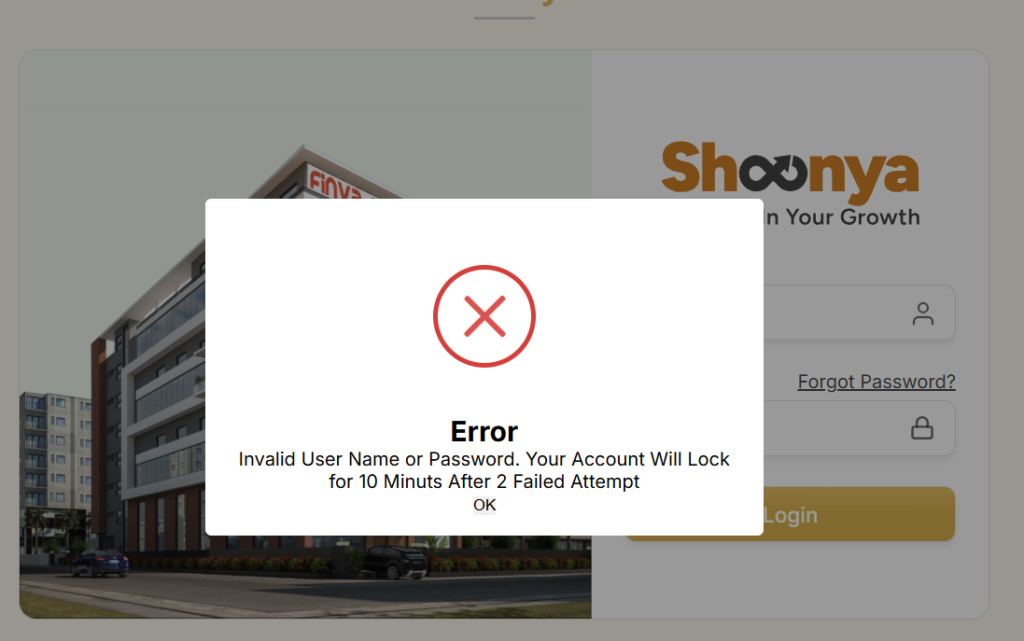
If you are seeing an incorrect password or user name on your screen, then you should double-check the log in credentials you enter. Make sure there are no typing errors or unnecessary spaces are there.
- Unable to Open the Portal
Suppose you are unable to open the website. In that case, you should check your internet connection or try opening the same website in another browser.
- Account-Related Issues
If you cannot log in even after entering the correct details, then you should contact the Shoonya Back Office support team. Its support channels are:
- Customer support: +91 97799 02002
- Website: Shoonya Contact Us
- Email: clientsupport@shoonya.com
Read more: Tradejini CubePlus: A Complete Guide for Options Traders
Lowest brokerage charges for Options in India: Top 3 Brokers
FAQs to Shoonya Back Office
1. What is Shoonya Back Office?
It is an online client portal to access your financial ledger, contract notes, demat holdings, account balance, profit and loss statements, etc.
2. How can I log in to Shoonya Back Office?
To log in, you must enter the username and password in the respective fields.
3. Is Shoonya Back Office free to use?
Yes, the Shoonya Back Office is completely free for registered clients.
4. Can I download contract notes from Shoonya Back Office?
Yes, you can download them through the Contract Notes section.
5. What is the difference between Shoonya and Shoonya Back Office?
Shoonya is mainly a trading platform to buy and sell securities and manage investments. Shoonya Back Office, on the other hand, is designed to access account details, financial information, holdings, and trading reports.
Conclusion
For traders and investors, Shoonya Back Office is a useful facility to keep track of their account information, financial transactions, and investment records. It provides access to contract notes, financial ledgers, demat holdings, margin details, etc.
By understanding its different sections, clients here can find information. If you have a Shoonya account, then you can visit the official Back Office portal.